Scale COP
Resize and reposition an image within a target canvas, with independent control over fit mode, tiling, and resampling filter.
Download HDA Back to all addons
License notice. The pre-built HDA was compiled under a Houdini Indie/Apprentice license. Loading it in a full Houdini FX session will flag the scene as limited-commercial. If you need an unencumbered HDA, build it from source using your own license — instructions below.
Inputs
| # | Name | Description |
|---|---|---|
| 0 | Source | Image to scale |
| 1 | Size Reference | Optional. When Use Size Reference is enabled, this input sets the output canvas resolution |
Parameters
Target Resolution
Use Size Reference When enabled, the output resolution is taken from the image connected to input 1 instead of the Scale Mode parameters.
Scale Mode How the output canvas size is determined.
| Mode | Description |
|---|---|
| Preset | Choose a standard resolution from a menu |
| Explicit | Set Width and Height directly |
| Uniform | Scale the source by a single multiplier |
| Non-Uniform | Scale X and Y independently |
Preset (Preset mode) Standard target resolution. Options include 720p, 1080p, 2K, 4K, 8K, DCI 2K, DCI 4K, and square formats (1K, 2K, 4K).
Width / Height (Explicit mode) Output canvas size in pixels.
Constrain Proportions (Explicit mode) Lock the Width/Height ratio to the source aspect.
Scale (Uniform mode) Multiplier applied equally to both axes.
Scale X / Scale Y (Non-Uniform mode) Independent per-axis scale multipliers.
Fit Mode
Controls how the source image is placed inside the output canvas.
Fit Mode
| Mode | Description |
|---|---|
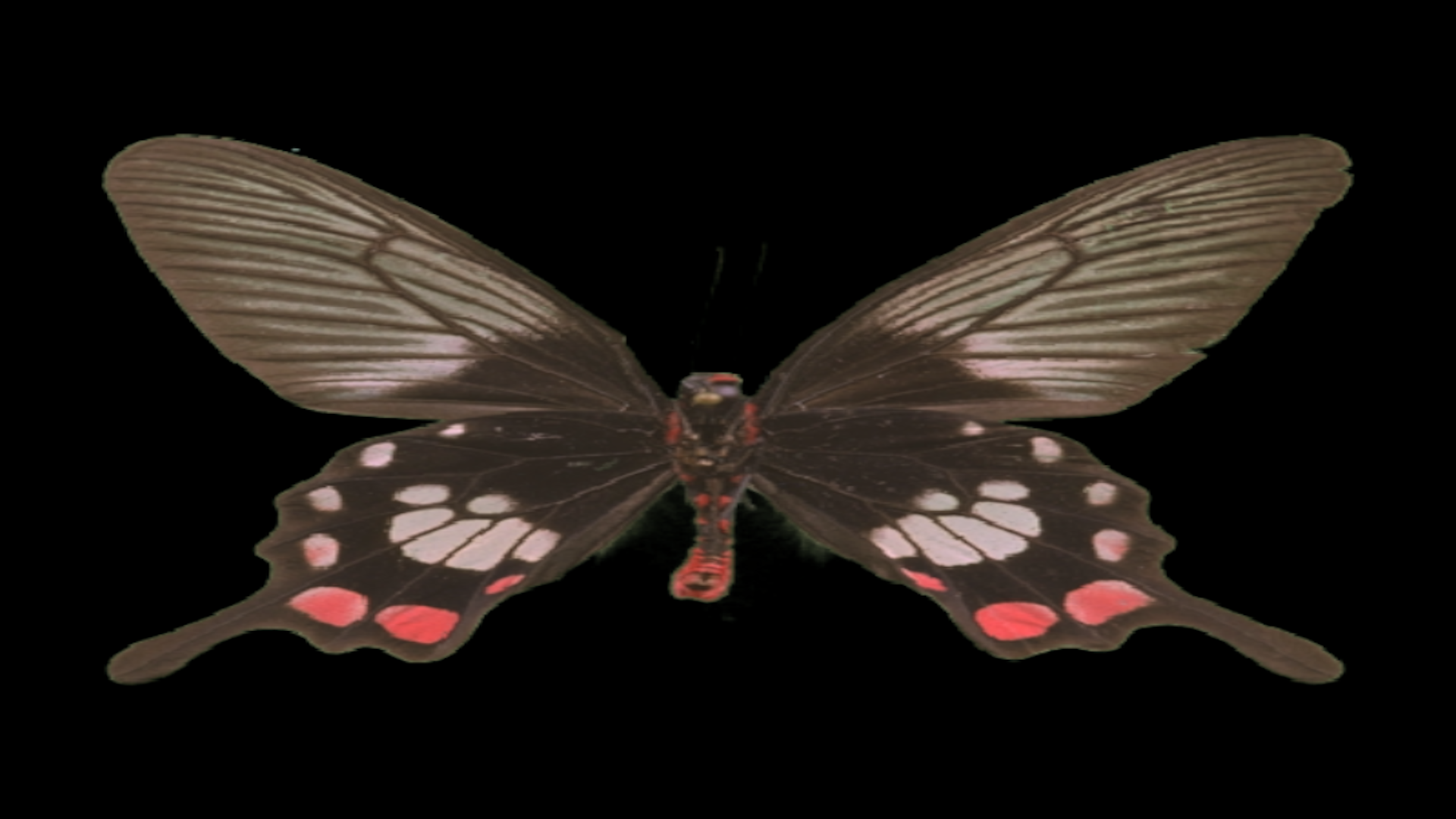
| Distort | Stretch source to fill canvas exactly, ignoring aspect ratio |
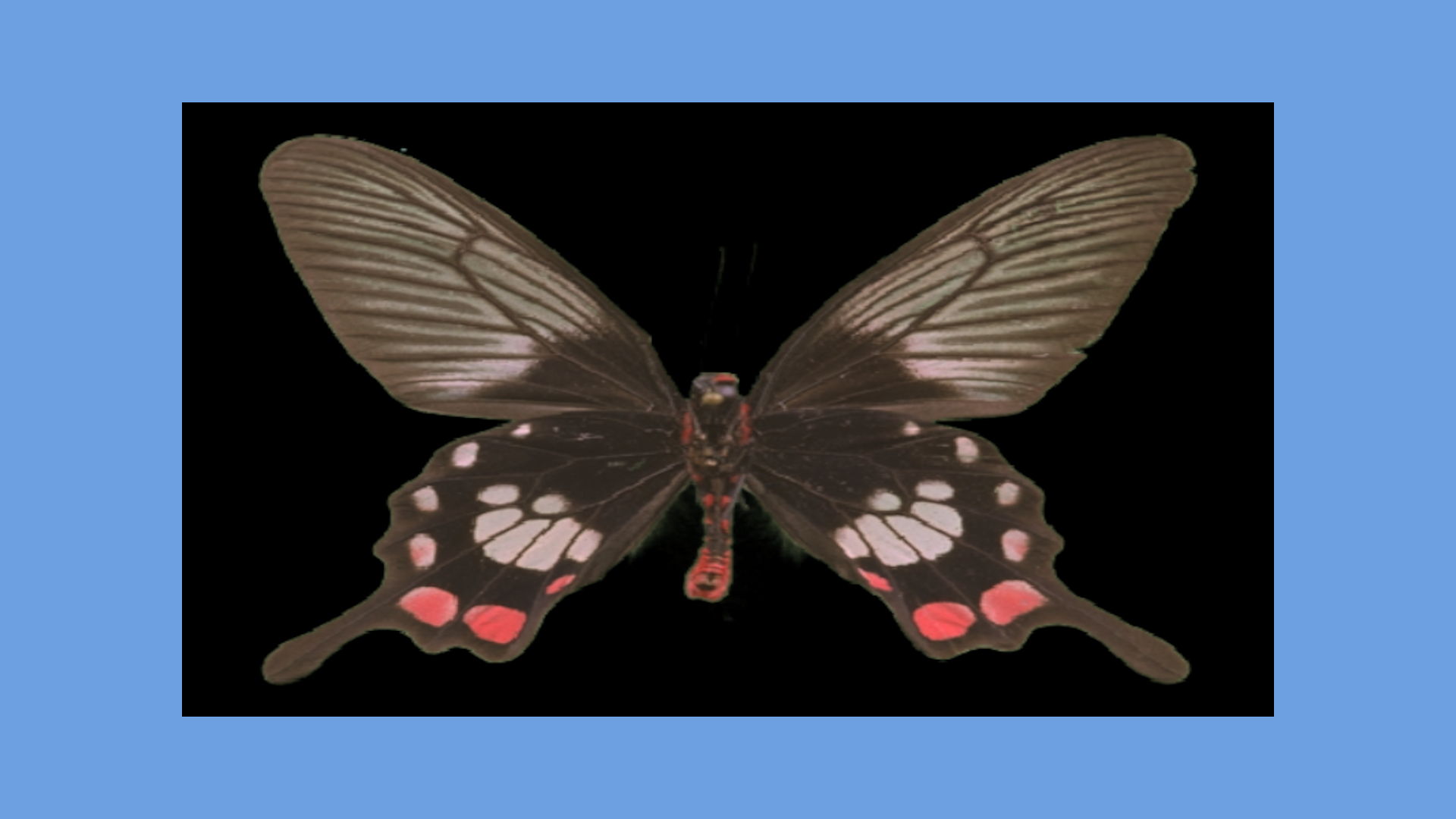
| Fit | Scale source to fit entirely inside canvas, preserving aspect. Remaining area filled with Background Color |
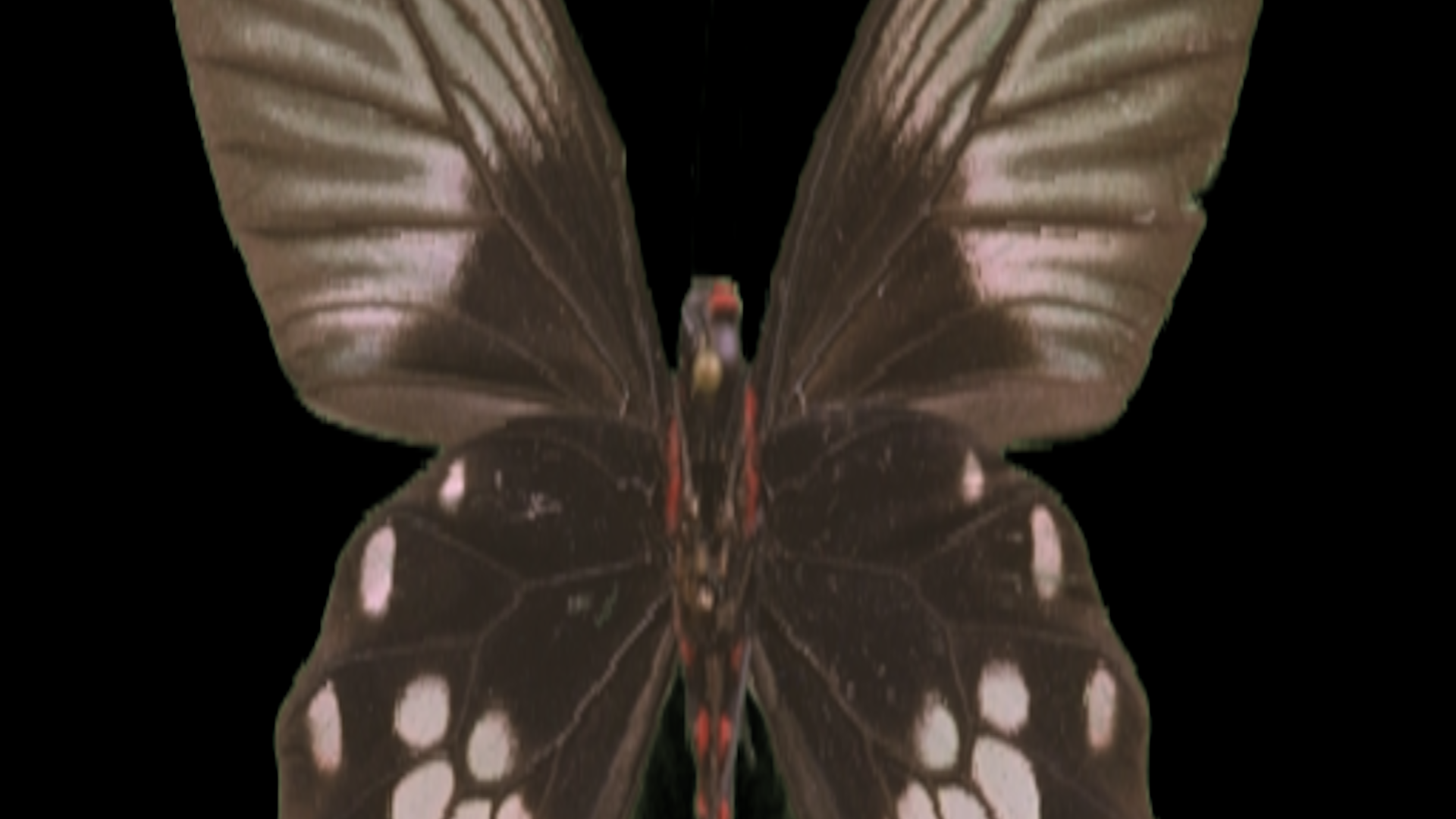
| Fill | Scale source to fill canvas entirely, preserving aspect. Content that extends beyond canvas edges is cropped |
| Width | Scale source so its width matches the canvas width |
| Height | Scale source so its height matches the canvas height |
| None | Place source at 1:1 pixel scale, centered |
Background Color (Fit, Width, Height, None modes) Color used to fill any canvas area not covered by the source image.
Examples
Fit — 4:3 source in a 16:9 canvas. Blue fill shows the padding.
Fill — Portrait source cropped to fill a landscape canvas. No padding; edges are clipped.
Distort — Source stretched to fill the canvas without preserving aspect ratio.
Tiling
Controls how the image repeats beyond its placed bounds. Tiling applies in image-pixel space: the source tile is one source-resolution unit in size.
Tile Mode
| Mode | Description |
|---|---|
| None | No tiling. Areas outside the placed image use Background Color |
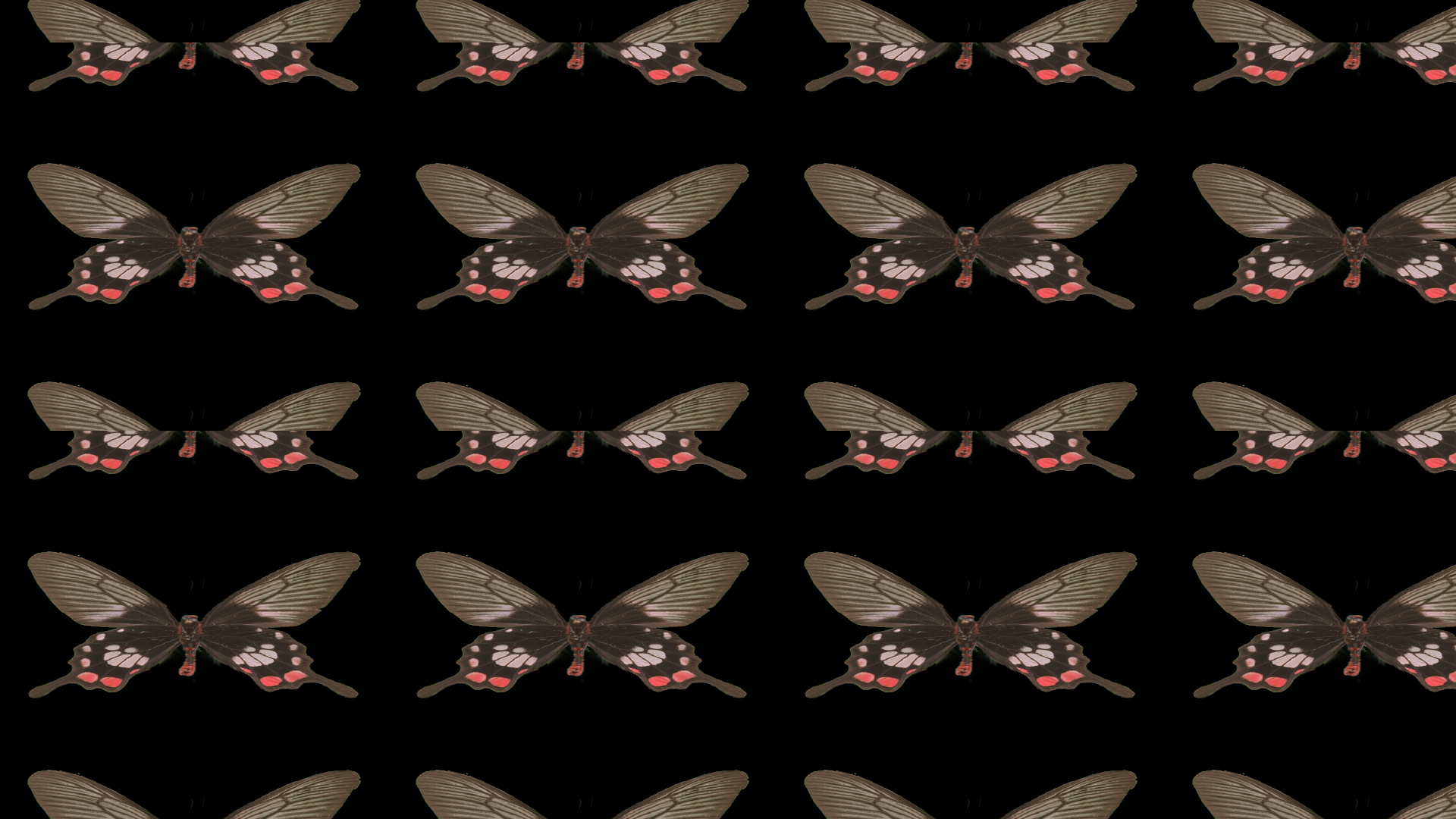
| Repeat | Tile the image with simple translation |
| Mirror X | Mirror the image horizontally on each repeat |
| Mirror Y | Mirror the image vertically on each repeat |
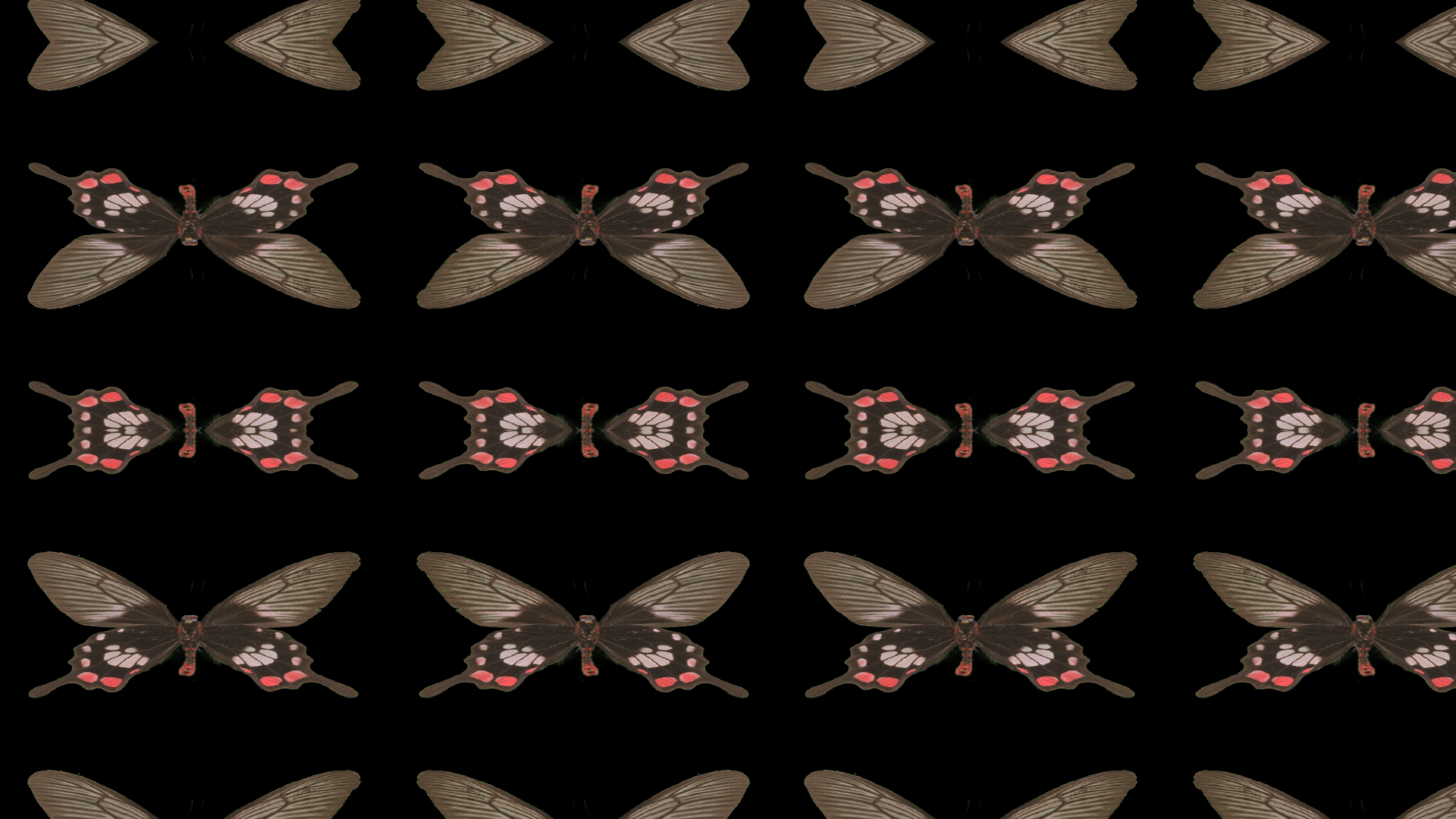
| Mirror Both | Mirror on both axes |
Tile Offset X / Tile Offset Y (any mode except None) Shift the tile origin in UV space. Values wrap at ±1.
Examples
Repeat — 512×512 source tiled to fill a 1920×1080 canvas.
Mirror Both — Same source tiled with bilateral mirroring.
Resampling
Filter Reconstruction filter used when scaling the source.
| Filter | Notes |
|---|---|
| Auto | Bilinear for magnification, Catmull-Rom for minification |
| Point | Nearest-neighbour. Fastest; aliased |
| Bilinear | Smooth, slightly soft |
| Box | Simple box filter |
| Bartlett | Triangular filter |
| Catmull-Rom | Sharp, good general-purpose filter |
| Mitchell | Slight blur; reduces ringing vs Catmull-Rom |
| B-Spline | Smoothest; can appear soft |
Building from Source
If you need to compile the HDA under your own Houdini license, use the included build script. This produces a fresh scale_cop.hda that carries no license restrictions from a third-party session.
Prerequisites
- Houdini 20 or later (any edition — Indie, FX, etc.)
hythonon yourPATH, or use the full path to your Houdini installation’shython
Steps
-
Download
build_scale_cop.pyand place it in any working directory. -
From a terminal in that directory, run:
hython build_scale_cop.pyIf
hythonis not on yourPATH, use the full path. For example on Linux:/opt/hfs20.5/bin/hython build_scale_cop.pyOn Windows:
"C:\Program Files\Side Effects Software\Houdini 20.5\bin\hython.exe" build_scale_cop.py -
The script writes
scale_cop.hdaalongside itself in the same directory.
Installing the HDA
In Houdini, go to Assets > Install Asset Library, select scale_cop.hda, and click Install. The node will appear in any COP network as Scale COP.