Fluid Domain Auto-Visibility

This tutorial was auto-generated by Funkworks.
One-click visibility keyframing for fluid simulation domains.
The Problem
When a fluid simulation starts after frame 1, the domain object sits in your scene as a visible empty box during all the pre-simulation frames. The fix is always the same: hide it one frame before the sim starts, show it on the start frame.
This means manually adding visibility keyframes every time you set up a fluid sim. This addon does it in one click.
Installation
- Download
fluid_domain_visibility.py - In Blender: Edit > Preferences > Add-ons > Install
- Select the downloaded file
- Enable Fluid Domain Auto-Visibility in the list
Tutorial
By the end of this tutorial you will be able to keyframe a fluid domain’s visibility automatically — hiding it before the simulation starts and revealing it on the first sim frame — with a single button click.
What You’ll Learn
- How to identify and select a fluid domain object correctly before running the addon
- How to read the addon’s frame preview to verify it will do the right thing before committing
- How to apply visibility keyframes in one click and undo them in one step
The Manual Workflow This Replaces
Without this addon, hiding the domain before the sim starts means:
- Find the frame just before your sim start (e.g., frame 23 if the sim starts at 24)
- Select the domain, go to frame 23, set Hide in Viewport and Hide in Render to hidden, insert keyframes
- Go to frame 24, set both to visible, insert keyframes
Two properties, two frames, four keyframe insertions — every single time you set up a fluid sim. The addon does all four in one click.
Step 1: Confirm Your Scene Has a Fluid Domain
Your scene must contain an object with a Fluid modifier set to type Domain. This is what you created when you set up the simulation — typically a box that surrounds the fluid emitter.
If you haven’t set up the fluid simulation yet, do that first: add a mesh, go to Properties > Physics, click Fluid, and set the type to Domain.
Checkpoint: In the Properties editor, with your domain object active, the Physics tab should show a Fluid panel with Type: Domain displayed.
Step 2: Select the Fluid Domain Object
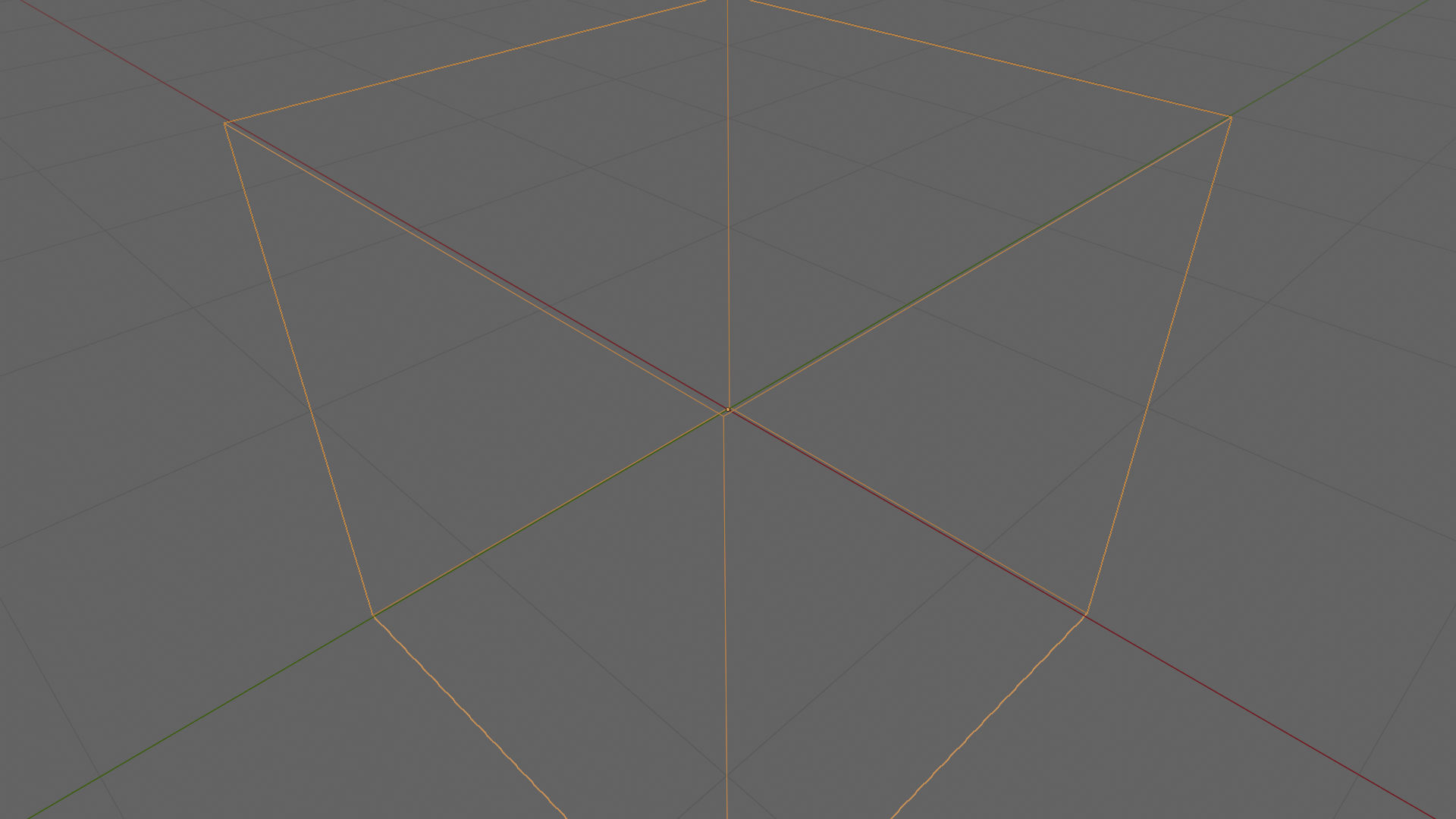
Click on the domain object in the viewport to make it the active object. This is the object that surrounds your fluid — not the emitter or any effector.
The addon’s poll function checks the active object for a Fluid modifier set to Domain type. If the wrong object is selected, the button will be greyed out.
Checkpoint: The domain object is highlighted in the viewport with an orange outline indicating it is the active selection.
Step 3: Open the Physics Properties Panel
Click the Physics Properties tab in the Properties editor. It’s the icon that looks like a blue particle/atom symbol.
Checkpoint: The Fluid panel is visible, showing your domain settings (resolution, bake options, etc.).
Step 4: Locate the Auto-Visibility Panel
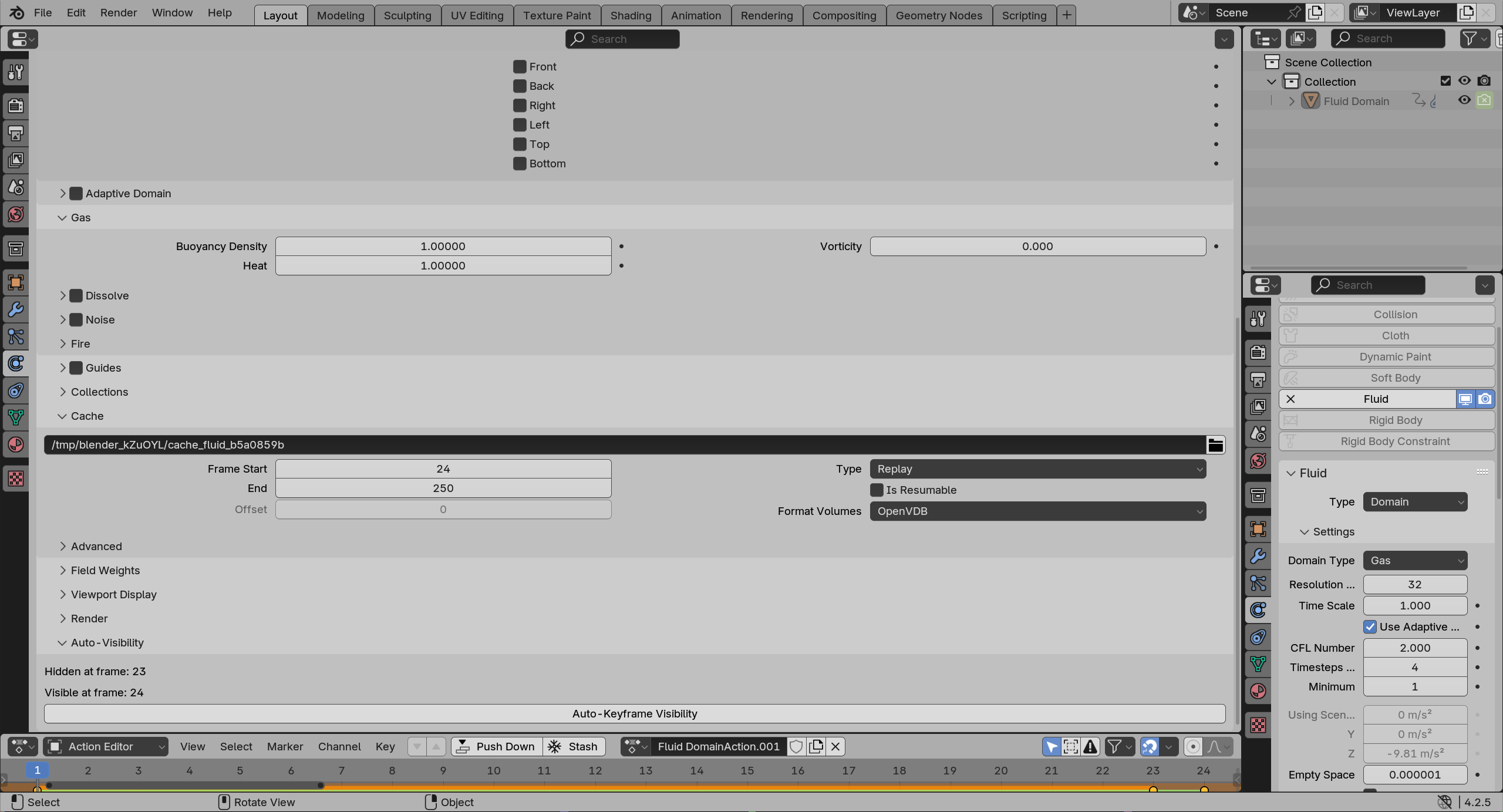
Scroll down within the Fluid panel. Near the bottom you will find a sub-panel labeled Auto-Visibility.
This panel is injected by the addon and only appears when the active object is a fluid domain.
Checkpoint: The Auto-Visibility panel is visible and shows two lines of text followed by a button.
Step 5: Verify the Frame Preview
Read the two frame numbers shown in the panel before clicking anything.
- Hidden at frame — the frame where the domain will be keyframed invisible. This is always one frame before the simulation starts.
- Visible at frame — the simulation’s start frame, read directly from Cache Frame Start in the fluid modifier settings.
If the numbers are wrong, adjust Cache Frame Start in the Settings section of the Fluid panel first, then return here.
Checkpoint: The Visible at frame value matches the Cache Frame Start value in your fluid domain’s Settings section.
Step 6: Click Auto-Keyframe Visibility
Click the Auto-Keyframe Visibility button.
The addon inserts four keyframes: viewport and render visibility hidden one frame before the sim starts, visible on the sim start frame. If the scene start frame is earlier than the hide frame, it also inserts hidden keyframes there to prevent the domain appearing before it should.
Checkpoint: A confirmation message appears in Blender’s status bar:
Visibility keyframes set: hidden from frame 1, visible at frame 24.
Step 7: Verify the Keyframes
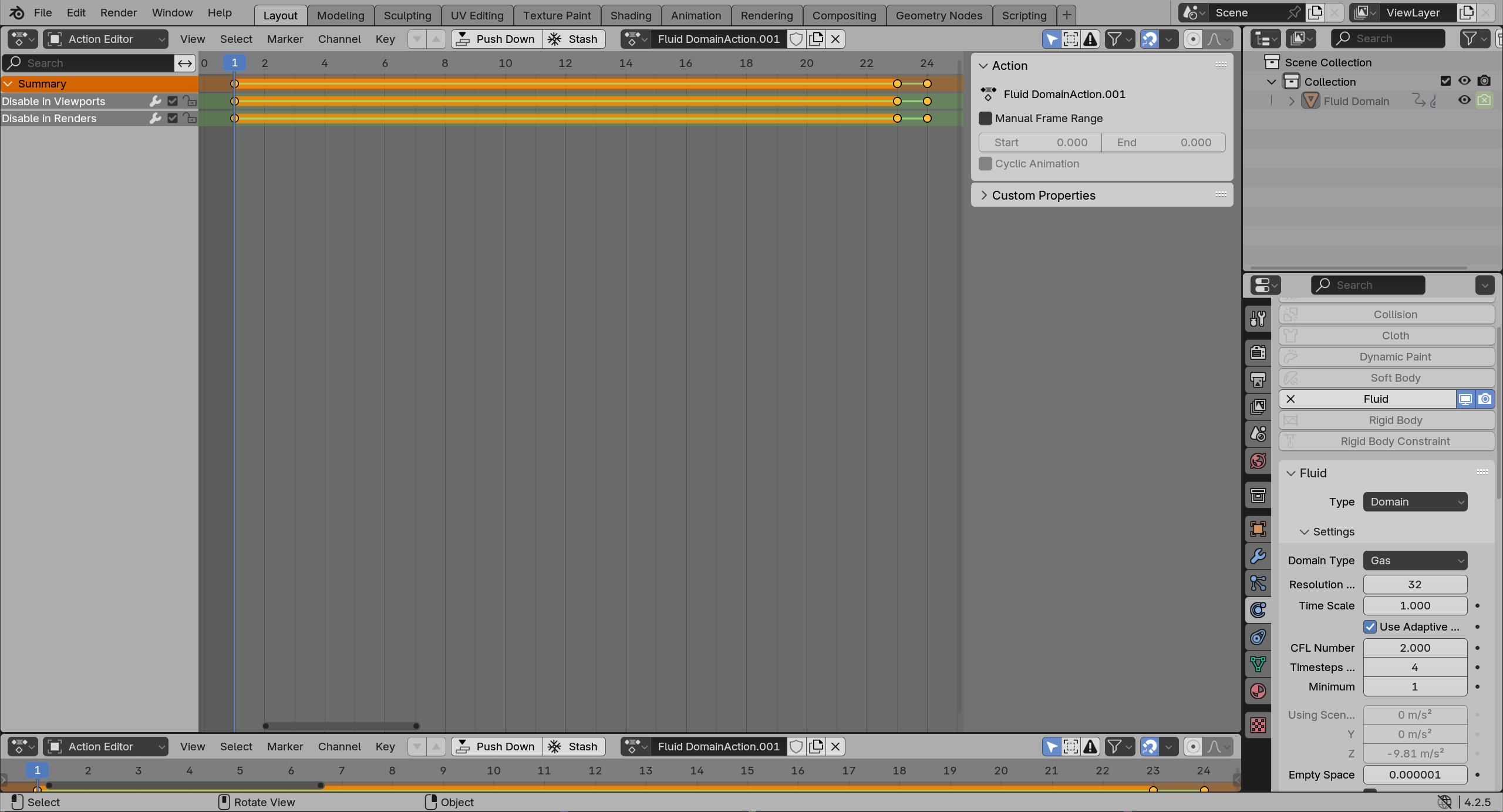
Open the Dope Sheet and select your domain object. You should see keyframes on the Disable in Viewports and Disable in Renders channels at the hide frame and the sim start frame.
Checkpoint: The domain object is invisible in the viewport at the hide frame and visible at the sim start frame.
Result
Your fluid domain now automatically hides during the pre-simulation frames and appears exactly when the fluid does. Both viewport and render visibility are covered. You did not have to manually set a single keyframe.
Undo: Ctrl+Z removes all inserted keyframes in a single step.
Troubleshooting
| Symptom | Likely Cause | Fix |
|---|---|---|
| Auto-Keyframe Visibility button is greyed out | Active object has no Fluid modifier set to Domain type | Select the correct domain object, or verify the Fluid modifier type is set to Domain |
| Auto-Visibility panel does not appear at all | Addon is not enabled, or wrong object is selected | Check Edit > Preferences > Add-ons and confirm Fluid Domain Auto-Visibility is enabled; then select the domain object |
| Panel shows Visible at frame: 1 | Simulation Cache Frame Start is set to 1 | The button will work but will issue a warning — keyframes are inserted at frame 0 (hidden) and frame 1 (visible). Adjust Cache Frame Start if that’s not intentional. |
| Running the operator twice produced unexpected results | Re-running overwrites keyframes at the same frames | This is by design — re-running is safe and idempotent. Keyframes at other frames are not touched. |
| Domain still visible before the hide frame | Scene start frame is equal to or later than the hide frame | The addon only inserts a scene-start hidden keyframe when the scene start is strictly earlier than the hide frame. Check your scene’s frame range under Output Properties > Frame Range. |
Notes
- Works whether or not the simulation is baked
- Multiple fluid domains in a scene: run once per domain
- To inspect or adjust the inserted keyframes, open the Dope Sheet and filter by the domain object
- The addon does not handle hiding the domain after the simulation ends — add those keyframes manually if needed
Requirements
- Blender 4.0 or later